AI Image Assistant
The AI Image Assistant is designed for generating equipment images, helping users quickly create equipment images suitable for configuration pages through natural language descriptions or reference images. Generated images have their backgrounds automatically removed and are directly added to the asset library, ready for use in image components, equipment display areas, or schematic areas within pages.
Feature Description
- Text-to-Equipment Image: Quickly generate equipment images by describing the equipment type, structural features, material colors, and display style via natural language.
- Reference Image Enhancement and Background Removal: Supports uploading on-site equipment photos. Even if the original image has cluttered backgrounds, poor lighting, or low quality, the AI can enhance the equipment subject, remove the background, and generate an equipment image more suitable for use in configuration pages.
- Iterative Adjustments: If the initial generation result does not meet expectations, you can continue to provide feedback through conversation, such as adjusting the equipment angle, highlighting structural details, modifying colors and materials, or enhancing the industrial style.
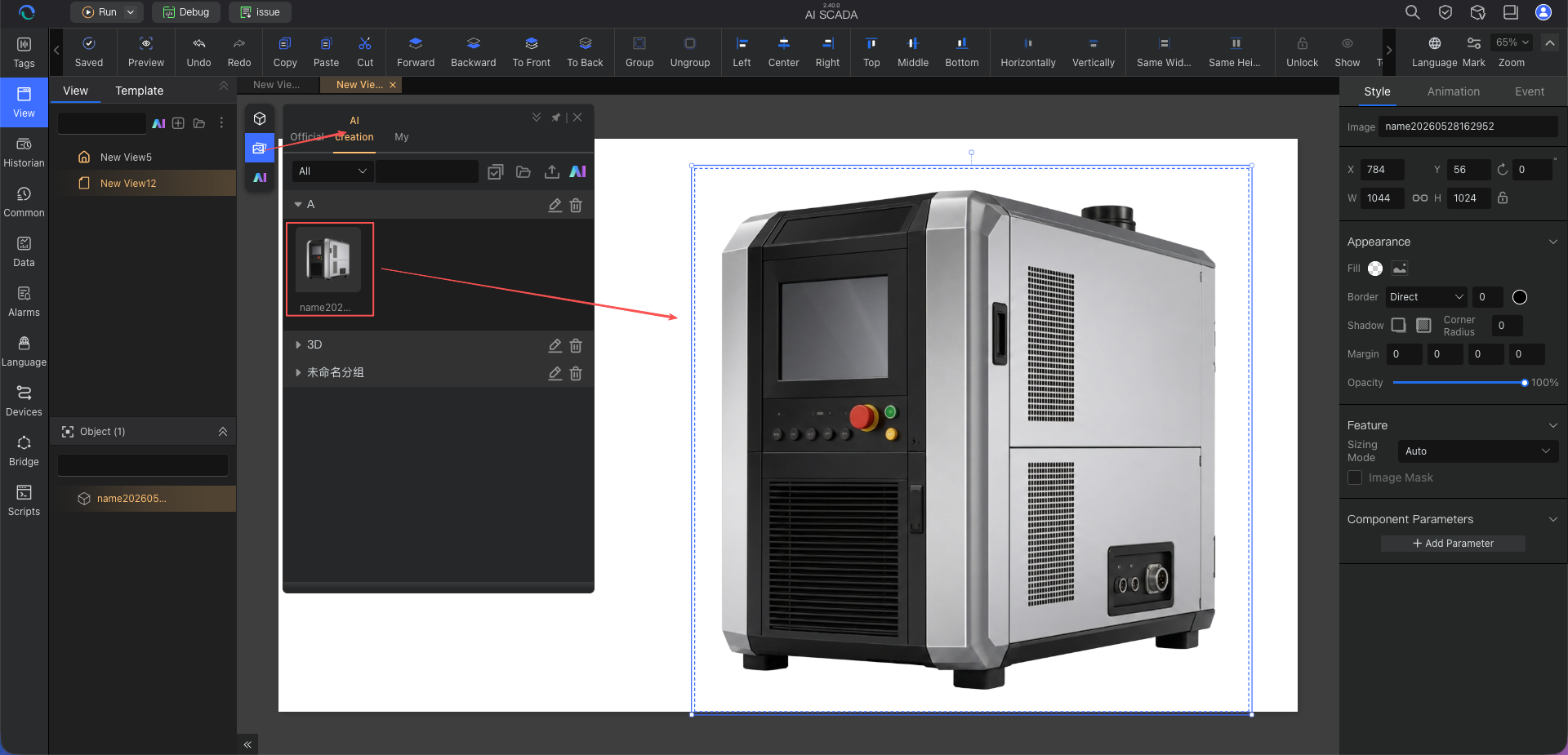
- Result Storage and Reuse: Generated equipment images are stored in the "AI Creation" area of the asset library and can be directly used later in image components or equipment display areas within configuration pages.
Core Advantages
1. Lower the Barrier and Quickly Obtain Page Assets
When building configuration pages, you often need equipment main images, equipment schematics, or equipment display pictures. The AI Image Assistant compresses the process of "finding images, editing images, and repeatedly communicating for results" into "describe the equipment or reference image -> generate image -> fine-tune", significantly shortening the asset preparation cycle.
2. More Professional Generation Constraints for Industrial Scenarios
Compared to general-purpose AI image generation models, the AI Image Assistant is not a completely open-ended, general-purpose image generation tool. Instead, it is designed around industrial production and management scenarios, with a more focused generation scope and knowledge framework. Users do not need to spend a lot of effort writing complex prompts; simply describe the equipment type, display angle, and basic style to more easily generate equipment images suitable for configuration pages.
Typical Scenarios
Scenario 1: Generate Equipment Main Images for Configuration Pages
Background: When building an equipment monitoring page, you need a main equipment image that can be directly placed on the page.
Example Prompt:
Generate an injection molding machine image,
two-thirds profile view,
blue-gray industrial style,
complete equipment structure, clean background,
suitable for display on a configuration page.
Value: Quickly fill the equipment display image on the page, avoiding inconsistent equipment styles from temporary image sourcing.
Scenario 2: Enhance On-Site Equipment Photos and Remove Background
Background: You have taken an on-site photo of equipment, but the background is cluttered, the lighting is poor, and the photo quality is low, making it unsuitable for direct use on a configuration page.
Operation Steps:
- Upload the reference image.
- Enter additional requirements, such as "preserve the equipment subject", "enhance metal texture", "remove background", "suitable for page display".
- Generate the enhanced equipment image and select the best result.
Value: Quickly transform casually taken on-site equipment photos into display-ready equipment images for pages.
5-Minute Quick Start
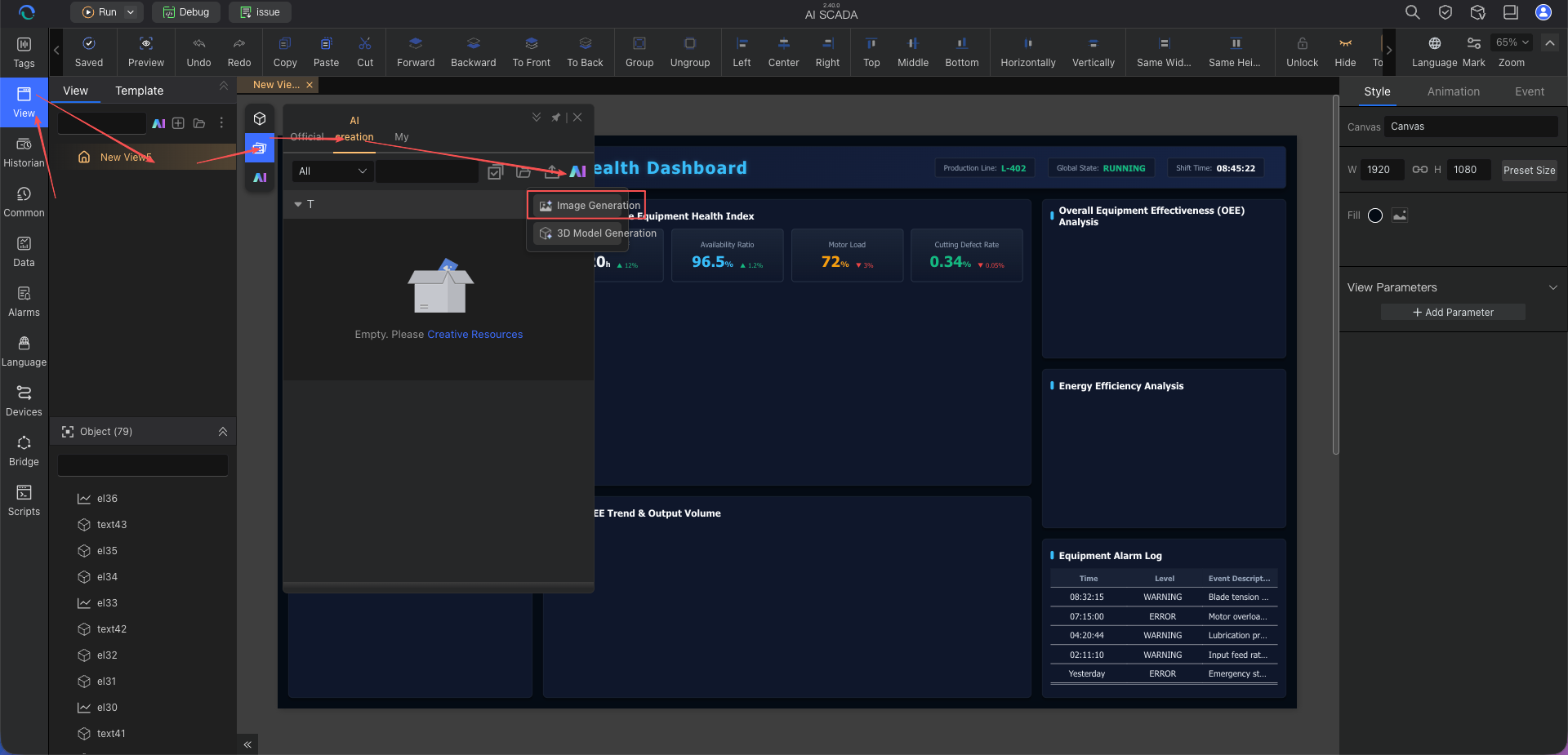
Step 1: Open the AI Image Assistant
Go to the AI Image Assistant page and first decide whether to generate an image directly or extend from a reference image.
Step 2: Describe Your Image Requirements
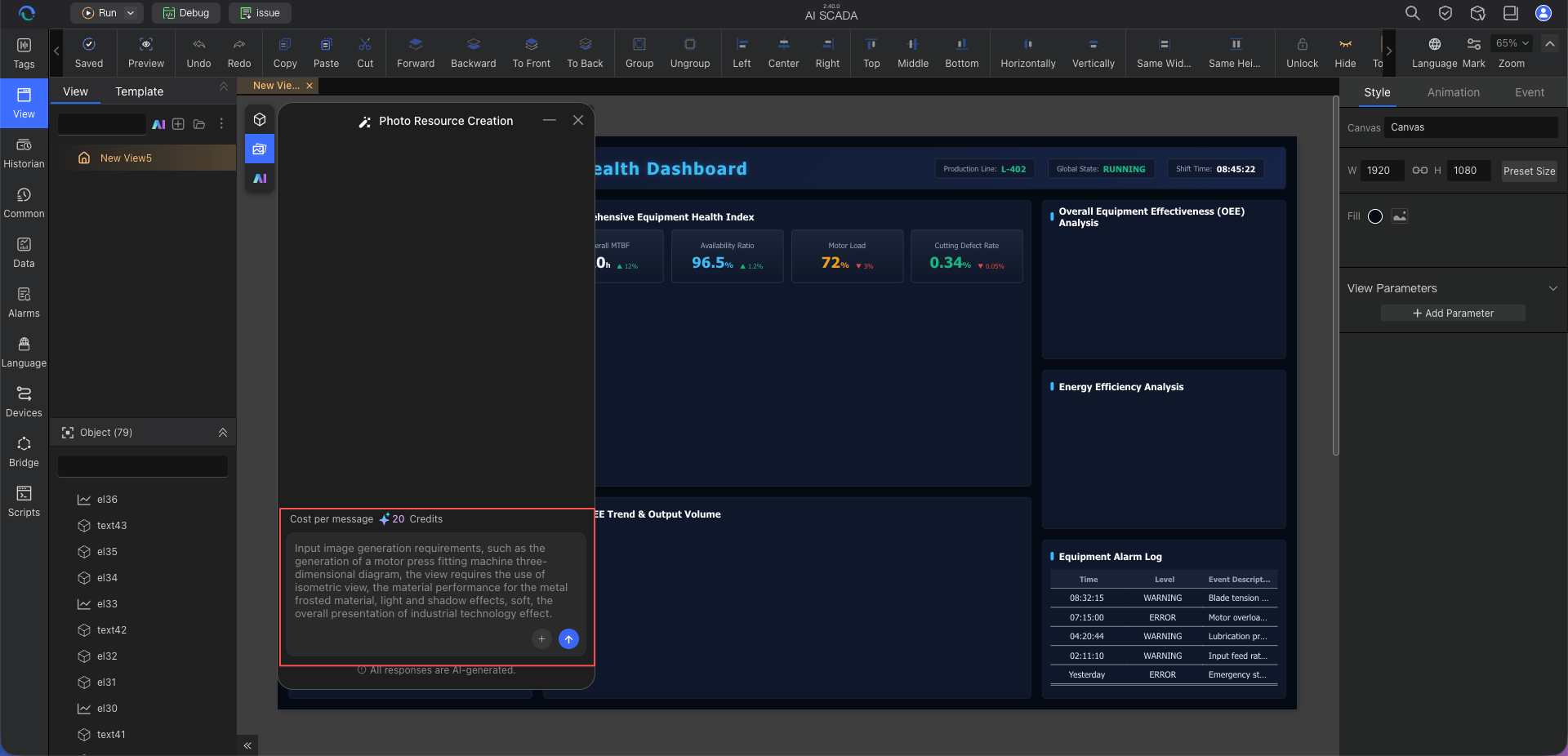
- When you don't have an existing equipment image, directly enter a prompt to generate.
- When you have an equipment reference image or an on-site photo, upload the image and then add generation requirements.
It is recommended to at least specify the following information:
- Equipment type: injection molding machine, storage tank, conveyor, filling machine, etc.
- Structural features: front view, side view, whether to fully display the subject, etc.
- Style direction: industrial, realistic, clean display, etc.
- Visual requirements: material, color, lighting, etc.
Step 4: Generate and View Results
Click "Generate Now" and wait for the AI to output the image results. After generation, first check whether the subject is correct, the style matches, and the image is suitable for the current page.
Step 5: Further Adjust or Add to Asset Library
- If the result is basically usable, save it directly and use it on the page.
- If further adjustments are needed, continue to provide modification requests.
- Once satisfied, save it to the asset library for reuse. The image can be dragged directly into a page for use, or selected and referenced from the AI creation page when generating a page.
Prompting Tips (For Quickly Generating High-Quality Images)
Tip 1: Basic Prompt Formula
Formula: Equipment type + Structural features + Style + Visual requirements
Example 1 – Single equipment image:
Generate an air compressor image,
front-side combined angle,
blue-gray industrial style,
complete structure, clean background,
suitable for placement on a configuration page.
Example 2 – Metallic equipment display image:
Generate a vertical storage tank image,
front view,
stainless steel material,
realistic display style,
clean background.
Example 3 – Production line equipment image:
Generate a conveyor equipment image,
side view,
clear metal structure,
industrial display style,
suitable for the equipment schematic area on a configuration page.
Tip 2: Use Supplementary Statements to Control Results
When the first result is not ideal enough, you can directly add:
Please make the following adjustments:
1. Make the equipment subject more complete.
2. Keep the background as clean as possible.
3. Change the color to a blue-gray industrial style.
4. Make structural details clearer.
This is more likely to yield stable results than scattered modifications.
Tip 3: Writing for Reference Image Enhancement Scenarios
When generating from a reference image, it is recommended to additionally specify:
- What to preserve: equipment subject structure, angle, appearance features.
- What to change: texture, material, color, background.
- What the final use is: equipment display image for a configuration page.
Example:
Using this equipment image as a reference,
preserve the overall outline and front view,
enhance the equipment texture,
remove the cluttered background,
make the background clean,
for use in the equipment display area of a configuration page.
Frequently Asked Questions
Q1: What if the generated image does not meet expectations?
A: It is recommended to close the current conversation, open a new dialog, and provide clearer instructions to the AI assistant, because the image generation model has context limitations. This is usually more efficient.
Q2: What kind of images are suitable for upload as reference images?
A: It is recommended to upload equipment photos with a clear subject. Even if the on-site background is messy and the photo quality is average, you can add supplementary instructions for the AI to focus on enhancing the equipment subject. However, if the equipment is heavily obscured or very blurry, the stability of the results will decrease.
Q3: Where can the generated images be used?
A: Primarily for equipment display areas on configuration pages. After generation, the images have their backgrounds automatically removed for easy direct reference on pages.
Q4: How can I maintain a consistent style across multiple images?
A: It is recommended to fix a set of style descriptions and reuse them in subsequent generations, for example, consistent equipment angle, color, material, and background requirements. When batch creation is needed, first determine a satisfactory sample and then continue expanding with similar prompts.
Q5: What types of assets is the AI Image Assistant more suitable for?
A: It is more suitable for equipment display images, equipment schematics, and image assets used to represent the equipment subject on pages. For engineering drawings or blueprint-type content that requires extremely high structural precision, manual refinement is still recommended.
Best Practices
1. Clarify the Purpose Before Writing Prompts
Even for equipment images, the composition requirements differ when used for main page display areas, thumbnail areas, or partial schematic areas. Clarifying the purpose first significantly improves generation efficiency.
2. Standardize Style Keywords and Establish a Team Asset Language
It is recommended to accumulate a set of commonly used style descriptions, such as "blue-gray industrial style", "front view display", "clean background", "suitable for configuration page use", etc., to facilitate team reuse.
3. Use Reference Images to Improve Stability
If you have already taken on-site equipment photos, prioritize using reference images, and then add requirements such as "enhance texture", "remove background", "preserve subject structure". This usually yields results closer to expectations than pure text generation.
4. Validate on Actual Pages After Generation
Before formal use, it is recommended to place the image on an actual page to check:
- Whether it matches the overall page style.
- Whether there are issues with stretching, cropping, or insufficient resolution.
- Whether it clearly represents the equipment subject.
Next Steps
-
API Integration Assistant – If you need to integrate MES, ERP, or cloud platform data after preparing page assets, continue learning about API interconnection configuration.
-
Usage Tips & Best Practices – After mastering image asset generation, next systematically study prompt writing, cross-assistant collaboration workflows, and team usage standards.